
You blacked out the name. You saved the file. You hit send. But the person on the other end knows exactly who wrote that document.
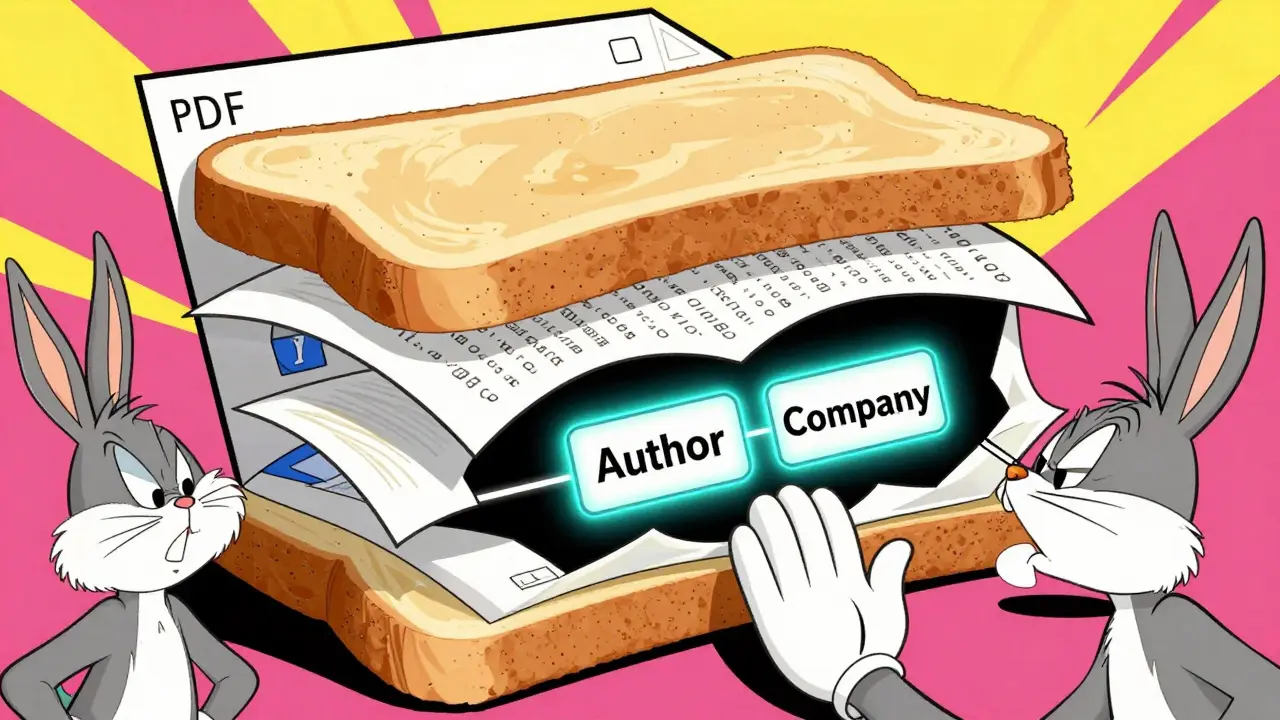
It sounds like a glitch, but it is actually a feature of how PDF is a portable document format standard that preserves formatting across devices and operating systems files work. When you draw a black box over text in a basic viewer or even some word processors, you are not deleting the words. You are just putting a sticker over them. The original text, the author's name, and often the entire editing history remain buried underneath, waiting for anyone with a little technical know-how to dig them up.
This is not theoretical. In 2013, the North Carolina Department of Natural and Cultural Resources published a challenge asking readers to identify the authors of four supposedly "redacted" documents. Most people could do it easily. They didn't need fancy forensic software; they just needed to look at the document properties. If you have ever shared a sensitive report, a legal brief, or a whistleblower draft, you need to understand why visual redaction fails and how to actually sanitize your files.
The Illusion of Visual Redaction
Most people approach redaction like painting. You take a brush (or a digital shape tool) and cover the sensitive part. To the naked eye, the information is gone. But in the digital world, layers matter.
A PDF is not a single flat image. It is a container made of multiple streams of data. There is the visual layer-the stuff you see on screen. Then there is the content stream-the actual text characters and their positions. And then there is the metadata-the invisible label attached to the file describing who created it, when, and with what software.
When you use a simple drawing tool to place a black rectangle over a name, you are only modifying the visual layer. The text in the content stream remains fully searchable and copy-pasteable. If I highlight the black box and copy the text, I can paste your secret into a plain text editor. This is the most common failure mode, but it is also the easiest to fix if you know where to look.
Metadata: The Silent Leaker
Even if you successfully remove the visible text, your identity is likely still screaming from the file's core. Every time you create a document in Microsoft Word, Google Docs, or Apple Pages, the application embeds metadata. This includes your username, your company name, creation dates, and modification timestamps.
When you export that document to PDF, this metadata travels with it. It sits in two specific places inside the file structure:
- The Info Dictionary: An older, simpler set of key-value pairs that holds basic info like Author, Title, and Creator.
- The XMP Stream: A more complex, XML-based metadata container that can hold richer details, including camera settings for images or extensive revision histories for documents.
Many naive cleaning tools only wipe the Info Dictionary. They leave the XMP stream intact. Or worse, they do nothing at all. As a result, the field labeled "Author" might still say "John Smith" even though John Smith’s name has been blacked out on every page of the document. Security researchers at Argelius Labs have repeatedly demonstrated that unless you explicitly run a sanitization step, these fields persist indefinitely.
| Field Name | What It Reveals | Risk Level |
|---|---|---|
| Author | Your full name or username as registered in the OS/app | High |
| Creator / Producer | The software used (e.g., Microsoft Word 365), which can narrow down the user base | Medium |
| CreationDate / ModDate | Exact timestamps of when the file was born and last touched | Medium |
| Company | Your employer or organization name | High |
Hidden Layers and Attachments
Metadata is just the tip of the iceberg. PDFs can contain optional content groups (OCGs), which are essentially hidden layers. You might have a layer with comments, a layer with tracked changes, or a layer with an OCR text overlay that doesn't match the visible image. If you redact the main text but forget to flatten or delete these layers, the sensitive data remains accessible via the Layers panel in Adobe Acrobat or other advanced viewers.
Then there are embedded files. Have you ever attached a spreadsheet or an email directly into a PDF? These attachments are separate objects within the PDF container. If you redact the PDF pages but leave the attachment, you are handing the recipient the raw, unredacted source file. They can open the attachment, read the original author tags, and see everything you tried to hide.
The Side-Channel Leak: Box Sizes
Let's assume you are thorough. You removed the metadata. You flattened the layers. You deleted the attachments. You even used a proper redaction tool to destroy the underlying text. Is your author identity safe?
Not necessarily. Attackers can use side-channel analysis. If you redact a name by placing a black box over it, the width of that box corresponds to the length of the word underneath. A short surname like "Lee" creates a narrow box. A long name like "Schwarzenegger" creates a wide one. If you redact the same name multiple times throughout a document, the consistent box sizes allow an analyst to guess the word based on its character count and position. This was highlighted in discussions around the open-source X-ray library, which automates the detection of these geometric leaks. While harder to exploit than metadata, it proves that visual obfuscation alone is never truly secure.
How to Actually Sanitize a PDF
To prevent author leakage, you need a process that goes beyond drawing boxes. The PDF Association defines proper redaction as a multi-step workflow: marking content, applying the redaction (which destroys the content stream), and finally, sanitizing the file.
Here is how you can ensure your documents are clean:
- Use Professional Tools: Avoid free online converters that claim to redact. Many simply upload your file to a server, process it, and send it back, potentially exposing your data. Instead, use client-side tools that process the file locally in your browser. For example, Vaulternal's Metadata Remover allows you to strip both the Info dictionary and the XMP stream without ever uploading the document. This ensures zero-knowledge privacy-your file stays on your device.
- Inspect Before You Send: Before finalizing, open the PDF in a viewer that shows metadata. Check the "Properties" or "Document Info" section. If you see your name, company, or unexpected dates, the file is not clean.
- Flatten Annotations: Ensure all comments, sticky notes, and highlights are either removed or flattened into the background image so they cannot be toggled off or inspected separately.
- Remove Embedded Files: Manually check for and delete any attachments stored within the PDF container.
- Verify the Output: After sanitization, try to copy text from the redacted areas. If you get black squares or nothing at all, the redaction held. If you get the original text, start over.
Adobe Acrobat Pro offers a robust "Remove Hidden Information" feature that handles many of these steps automatically. However, it requires a subscription and installation. For users who need a quick, private, and free solution, browser-based utilities that utilize WebAssembly to rewrite the PDF structure locally are increasingly popular. They offer identical pixel output while scrubbing the hidden data stores.
Best Practices for Sensitive Documents
If you regularly handle confidential information, build a habit of "cleaning first." Do not wait until the last minute before sending a file to worry about metadata. Treat metadata removal as part of the saving process, not an afterthought.
Consider creating templates that have default metadata stripped. In Microsoft Word, you can go to File > Info > Check for Issues > Inspect Document to remove personal info before exporting to PDF. This reduces the load on the PDF itself.
Finally, educate your team. The assumption that "if I can't see it, it's gone" is dangerous. In litigation, journalism, and corporate governance, leaked metadata has led to severe consequences. By understanding the difference between visual hiding and true deletion, you protect yourself and your organization from accidental disclosures.
Can I see what metadata is in my PDF before removing it?
Yes. Most PDF viewers allow you to view metadata. In Adobe Acrobat, go to File > Properties. In web browsers like Chrome or Edge, you can often right-click the file and select Properties, or look for a "Document Properties" option in the viewer toolbar. Some dedicated tools, like Vaulternal's Metadata Remover, offer an "inspect" mode that displays all hidden fields in a readable list before you choose to strip them.
Does printing a PDF to a new PDF file remove metadata?
Sometimes, but not reliably. Printing to PDF uses a virtual printer driver that rasterizes the document into a new file. This often strips the original content stream and metadata, effectively creating a fresh document. However, depending on the printer driver and settings, some metadata may carry over, or the new file may generate its own metadata (like your computer's username). It is better to use a dedicated sanitization tool to ensure complete removal.
Is it safe to use online PDF redaction tools?
For highly sensitive documents, no. Online tools require you to upload your file to a remote server. Even if the provider claims to delete files immediately, you are trusting their security practices. For legal, medical, or financial documents, use client-side software that processes the file locally on your machine, ensuring the data never leaves your possession.
What is the difference between the Info Dictionary and XMP metadata?
The Info Dictionary is an older, simpler metadata format included in early PDF specifications. It holds basic fields like Author and Title. XMP (Extensible Metadata Platform) is a newer, more flexible standard that can store much richer data, including custom properties and detailed revision histories. A thorough sanitizer must clear both to prevent leaks.
Can I recover text that was properly redacted?
If the redaction was done correctly using professional tools that destroy the underlying content stream, no. Proper redaction removes the text data entirely from the file structure, replacing it with a blank space or a black box graphic. Recovery is only possible if the redaction was superficial (e.g., just covering text with a shape) or if the original unredacted file exists elsewhere.